
A 4x4 Hdmi Matrix Switcher routes signals from four HDMI sources to four displays. Unlike a basic splitter, it can send different sources to different screens at the same time. A laptop might feed a conference-room display, while a media player appears on a lobby screen. Each output can usually be assigned independently, though exact routing options depend on the model.
That flexibility is useful in meeting rooms, classrooms, control spaces, and home theaters. But the number “4x4” does not tell the whole story. A matrix switcher’s supported resolution, refresh rate, audio formats, and HDCP compatibility can affect whether a setup works as expected. Check the specifications of every connected device, including displays and source equipment. Look for practical control options too, such as front-panel buttons, a remote, or network management.
Small details matter. A tidy connection diagram can still overlook a cable run that is too long or a display with different settings. Before installation, map each source to its intended screen and test the actual signal path. This guide explains how a 4x4 matrix works, what features to compare, and which setup details deserve a closer look. The right choice depends on the equipment and the way people will use it—not just the port count.
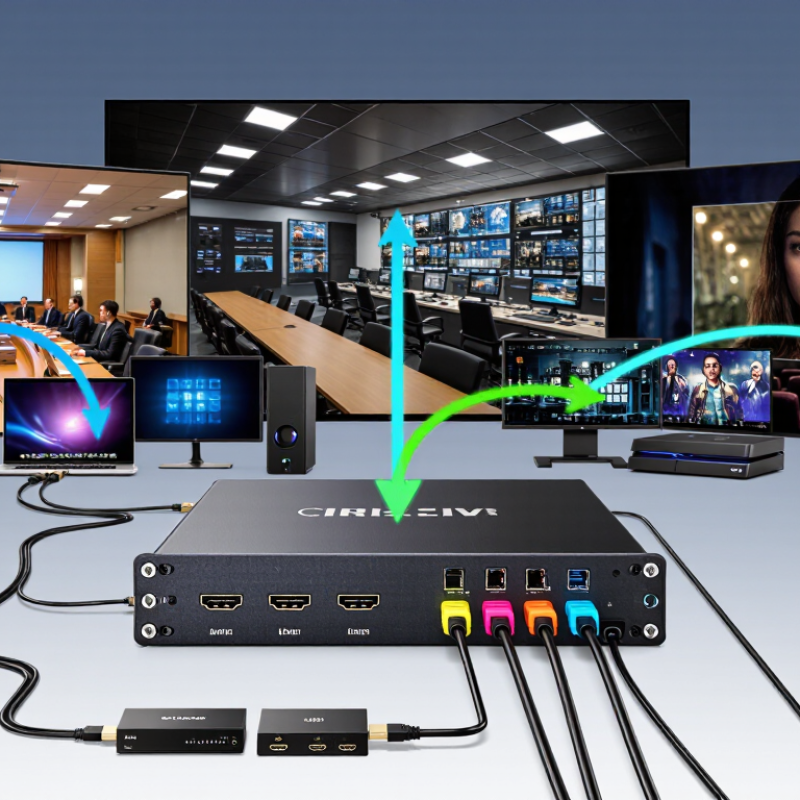
A 4x4 HDMI matrix switcher connects four HDMI source devices to four displays. It lets an operator route each source to a chosen screen, independently. For example, a laptop can feed a meeting-room display while a media player serves a nearby monitor. One source may also feed multiple outputs, if the unit supports that routing mode. It is more flexible than a basic splitter, which usually sends one source to several displays.
The switcher manages signal paths; it does not create extra video content. Its practical performance depends on supported resolution, refresh rate, cable length, and signal-protection compatibility.
HDMI Forum specifications describe bandwidth ceilings of 18 Gbps for HDMI 2.0 and up to 48 Gbps for HDMI 2.1. Those figures are not guarantees for every matrix: the device must support the relevant format across its inputs and outputs.
Check carefully.
Some systems also use EDID management to help a source select a format that connected displays can handle. That detail is easy to overlook. A mismatched setting can produce a blank screen, even when every cable appears firmly connected.

A 4x4 HDMI matrix switcher has four HDMI inputs and four outputs. It lets each output show a selected input, independently of the others. For example, a laptop connected to Input 1 can appear on the conference-room display, while Input 2 feeds a nearby monitor. Another output can show Input 1 as well. The routes are changed electronically, without moving cables. This is useful when several sources and screens need flexible connections.
Tips: Label each cable at both ends. Then test every source with every display. Confirm supported resolution, refresh rate, and audio format before installation. A small compatibility check can prevent a blank screen during a presentation.
Routing is only part of the setup. Displays may report different capabilities, and the switcher’s EDID settings can affect the resolution a source sends. HDCP support also matters for protected video. Check the device specifications and test the intended signal path. A matrix does not make every display behave alike. In practice, setup can take a little adjustment, especially with mixed display models. Keep the final input-to-output assignments written near the equipment.
A 4x4 HDMI matrix switcher has four HDMI inputs and four outputs. It can route any source to any display, so a media player in one room can feed a screen elsewhere. Inside, a switching processor handles those connections. HDMI ports carry video and audio, while control buttons, a remote, or network commands let an installer change routes. Many units also include EDID management, which helps sources identify a display’s supported formats. This matters when a laptop and television report different capabilities. Small detail, big effect.
Supported signal features vary by model. Check the listed bandwidth, maximum resolution, refresh rate, and HDCP version against every device in the chain. Some models pass HDR video and multichannel audio; others may limit formats or reduce performance at higher resolutions. Audio extraction, ARC, and downscaling can be useful, but they are not standard on every matrix. A stable power supply and well-made cables also matter, especially across longer runs. In practice, the wiring can still feel less tidy than expected. Test each source and display combination before installation, since one older screen can affect the available signal settings.
A 4x4 HDMI matrix switcher connects four video sources to four displays, allowing each screen to show a different source or share one. Its value becomes clear when people need flexible viewing without moving cables. In a living room, a game console, streaming player, cable receiver, and computer can connect in one place. A viewer can watch a film in the lounge while someone else follows a game in another room. Simple in theory. Room layouts still matter.
Homes with multiple screens can use a matrix to send a source to a bedroom television, a projector, or a kitchen display. This can reduce repeated equipment and cable changes. Before installation, check the source and display resolutions, cable distances, and audio needs. A long cable run may need a suitable extender. Not every setup behaves identically.
In commercial spaces, the same flexibility helps restaurants show different events across separate areas, or offices route presentations to meeting-room displays. A retail shop might send promotional video to several screens, while a control room assigns specific feeds to selected monitors. Installers should label inputs and outputs clearly; otherwise, troubleshooting becomes guesswork. It is also worth testing switching delays and audio routing with the actual equipment. The small details are easy to overlook. A matrix does not fix a weak source signal or incompatible display settings.
A 4x4 HDMI matrix switcher routes four video sources to four displays. Each screen can show a different source, or several screens can share one. This setup suits meeting rooms, classrooms, and home theaters where devices and displays need flexible connections. But the number of ports is only a starting point.
Check that the switcher supports the resolution and refresh rate your sources and displays actually use. Confirm compatibility with current copy-protection standards, too; mismatches can cause a blank screen. Audio matters. Some units pass audio through HDMI, while others offer separate audio outputs for speakers or amplifiers.
For mixed displays, look for EDID management, which helps coordinate video settings across connected equipment. Consider control options as well: a remote, front-panel buttons, or network control may fit different installations.
Short cables can simplify setup, but long runs may require signal-boosting equipment. On paper, these details seem tidy. In a real room, menus and display settings can still take time to sort out. Leave space for ventilation, label each cable, and test every source-display combination before installation is considered finished.
Content © 2025 Komatsu. All Rights Reserved